Skip to content

In this guide, we will go through how you can change the settings in MyDesk so that it only shows meetings booked directly through MyDesk.
Step 1: Go to the administration panel
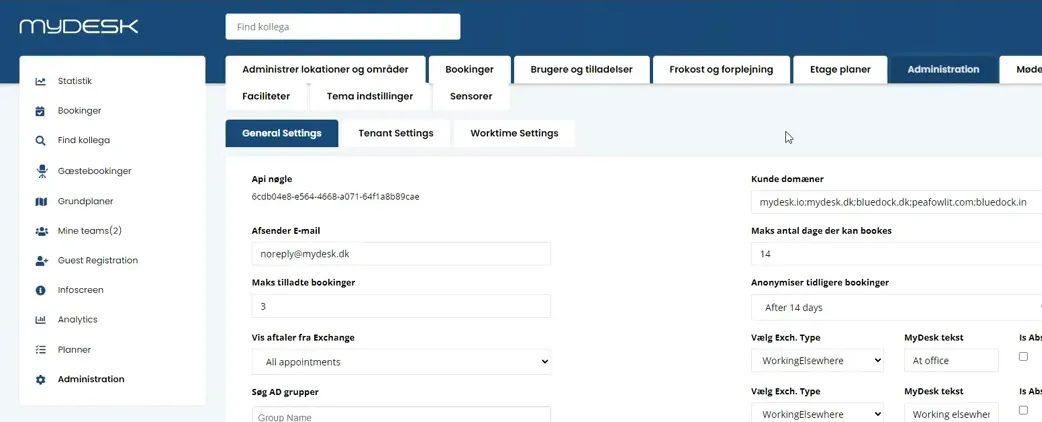
As an administrator, you have access to the settings where you can make the necessary changes. Start by navigating to the administration panel. Here you’ll find the relevant settings to change how meetings are displayed.
Step 2: Find the option for viewing appointments
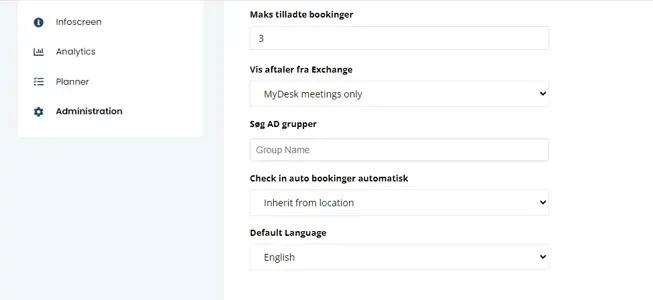
When you are in the administration panel, look for the section called “Administration”. Here you will find an option called “Show appointments from Exchange”. This is the setting we need to change to limit the view to MyDesk meetings only.
Step 3: Choose MyDesk meetings
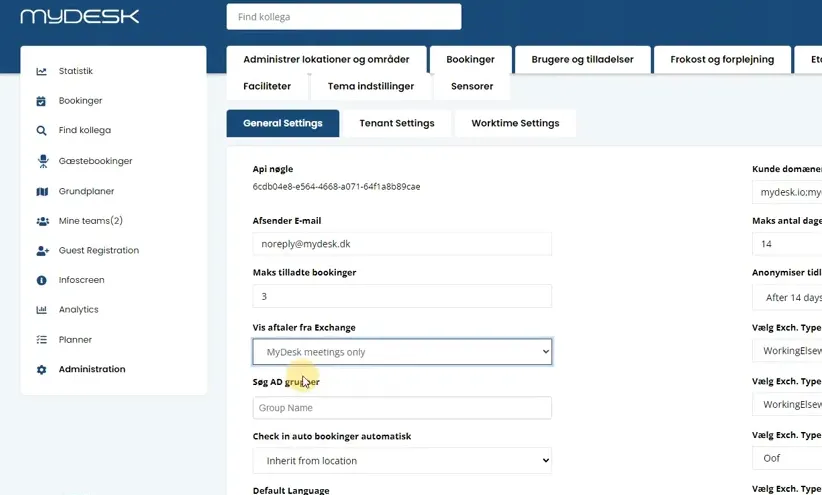
Under the “Show appointments from Exchange” option, select “MyDesk Meetings only”. This will ensure that the system only shows the meetings booked through MyDesk rather than all your Outlook meetings.
Step 4: Save the changes
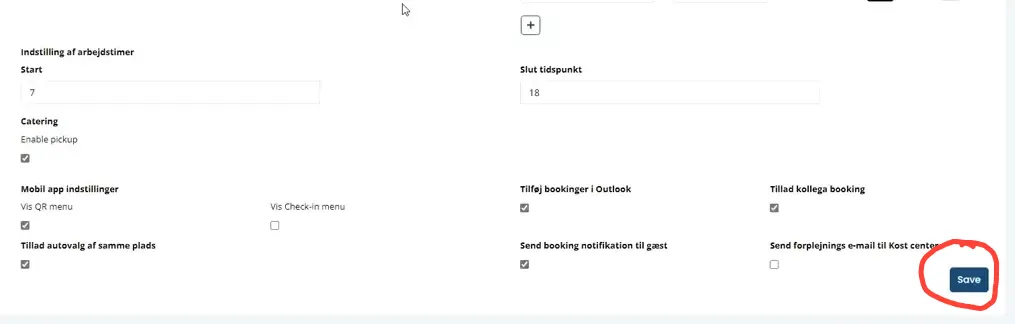
After you have made your selection, make sure to save the changes. Click “Save” to confirm that the changes will take effect.
Step 5: Go back to the overview
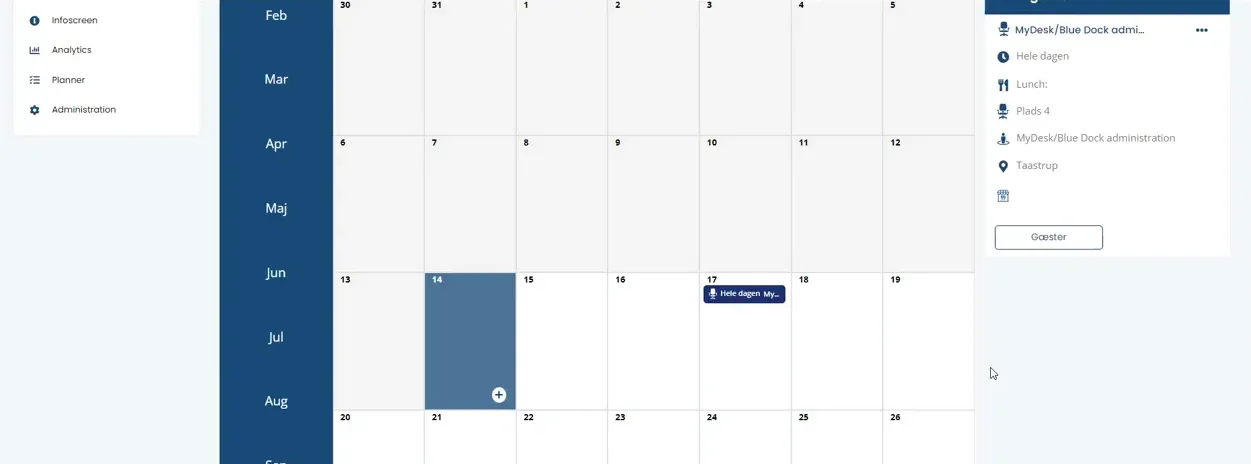
Once you have saved the changes, you can go back to the overview. Here you will now only see the meetings and desk bookings made in MyDesk. This will give you a clearer picture of your availability and scheduled meetings, without your other Outlook meetings disturbing the overview.
Important information to remember
It is important to note that changing these settings requires administrator rights. If you change the setting, it will affect all your colleagues. You cannot change the setting for a single user, as the change will take effect for the entire organization.